Hour Requirement
As outlined in the Enrollment Agreement, students commit to working a minimum of ten hours per week and meeting the hour requirements defined by their Status Form. This page describes how that requirement is tracked and fulfilled in practice.
Supervisors work with students to build a weekly schedule that meets the hour target for their position, which in turn satisfies the term's total hour requirement, as outlined on the Hour Contracts page. The Work College Program Office sets these target hours for each scholarship disbursement period; they are posted on the Program's website and reflected on the student's scholarship disbursement summary.
Students are responsible for monitoring their own hours worked and have real-time access to this information through UltraTime. Students can also review total hours paid to date through their past disbursement summaries, and supervisors can view a student's hours worked to date through the same system.
If necessary, the Work College Program Office may adjust the hour requirement during a term if extenuating circumstances, such as adverse weather or a utility outage, prevent all students from meeting the requirement.
Student- Verifying Total Hours Worked
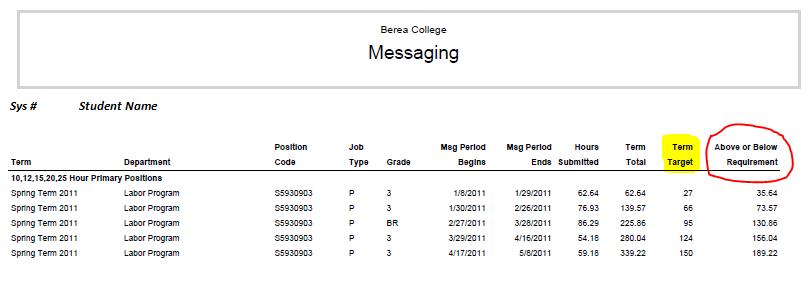
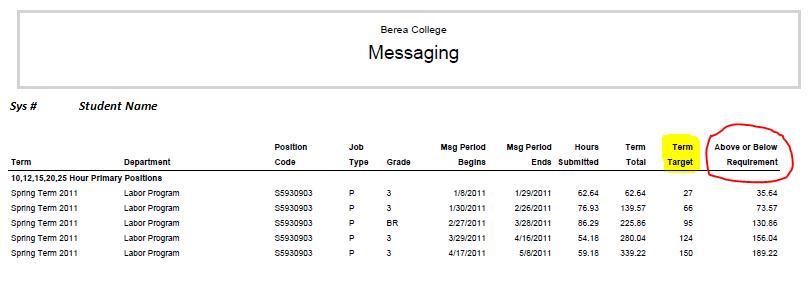
– displays total hours worked to-date during a Fall or Spring Term, or Summer Period.
Note: A summer period does not include a term target – term target is only used during the Fall or Spring term.
THE STUDENT TO ACCESS THE REPORT MUST DO THE FOLLOWING:
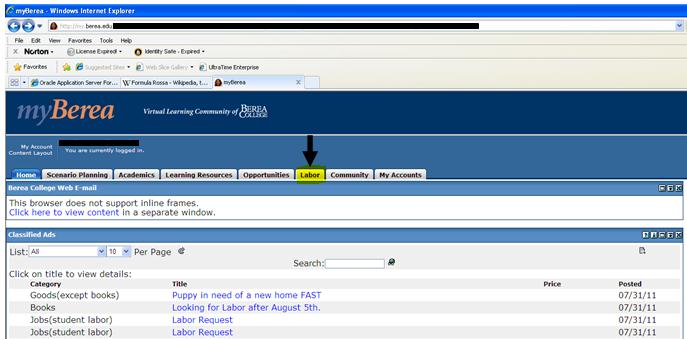
STEP 1: Opened the myBerea Portal and select the Labor tab:
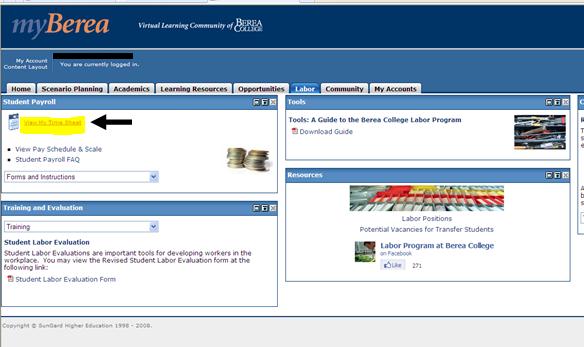
STEP 2: On Labor tab select View My Time Sheet
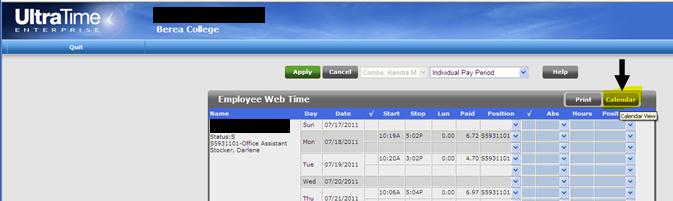
STEP 3: Select Calendar on the UltraTime window
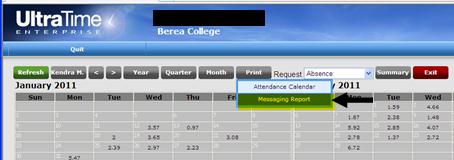
STEP 4: Select under Print the Messaging Report
Supervisor Verifying Student Hours Worked
– displays total hours worked to-date during a Fall or Spring Term, or Summer Period**.
* Payment Coordinator can also access using the same steps.
** Summer Period does not include term target.
THE SUPERVISOR or PAYMENT COORDINATOR TO ACCESS THE REPORT MUST DO THE FOLLOWING:
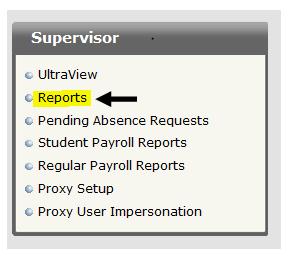
STEP 1: Open Tracy UltraTime and select reports
STEP 2: Select Miscellaneous Report Menu
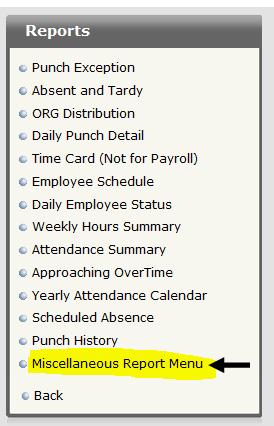
STEP 3: Select Miscellaneous Report Menu
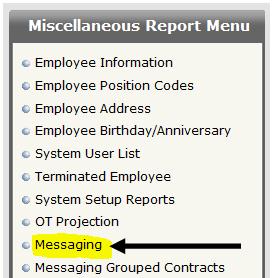
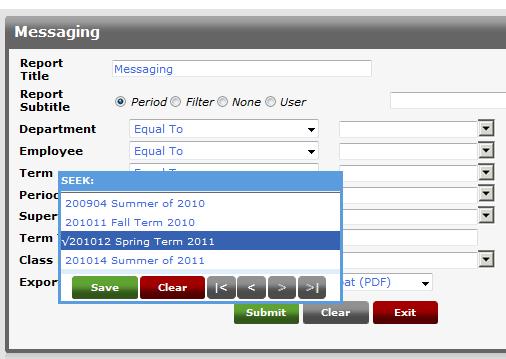
STEP 4: Select a Term
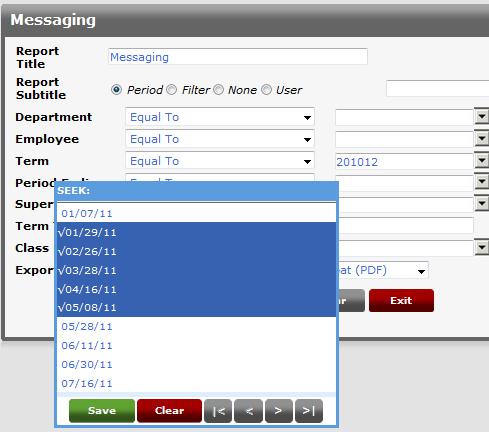
STEP 5:Select all of the pay period end dates that have occurred for the term or summer period and include the end date for the present pay period within the term or summer period.
Note: Payment period end dates for the present payment term or period (Fall or Spring term or summer period) can be accessed by going to the Labor Program Office Home site and selecting Payment Schedule and WLS rates.
STEP 6: Select the student name(s) or you can select the dept which will display reports on all of the students in that department.
Note: You will only have access to the records of students under your supervision or if you are the Payment Coordinator access to all of the student records in that department.
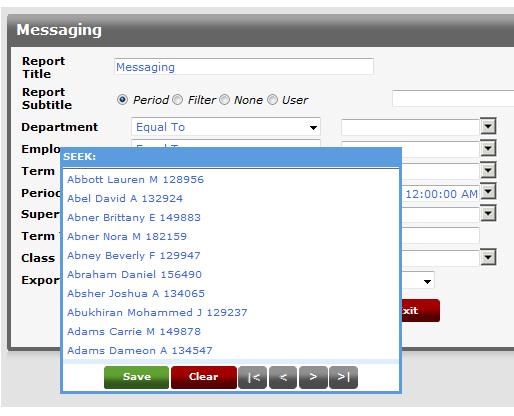
OR
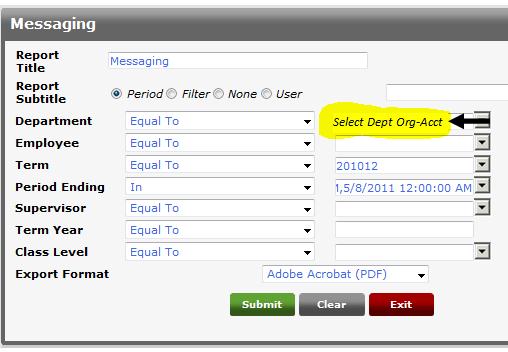
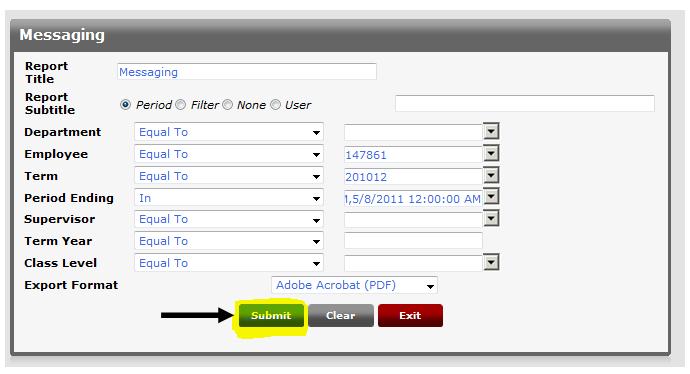
STEP 7: Select SUBMIT and the report will appear.